How to Fix Uber Not Sending Verification Code (OTP) in the USA (7 Working Fixes)
- When I tested this on an iPhone with Filter Unknown Senders turned on, the Uber code was sitting silently inside the Unknown Senders tab for ten minutes without triggering a banner alert.”
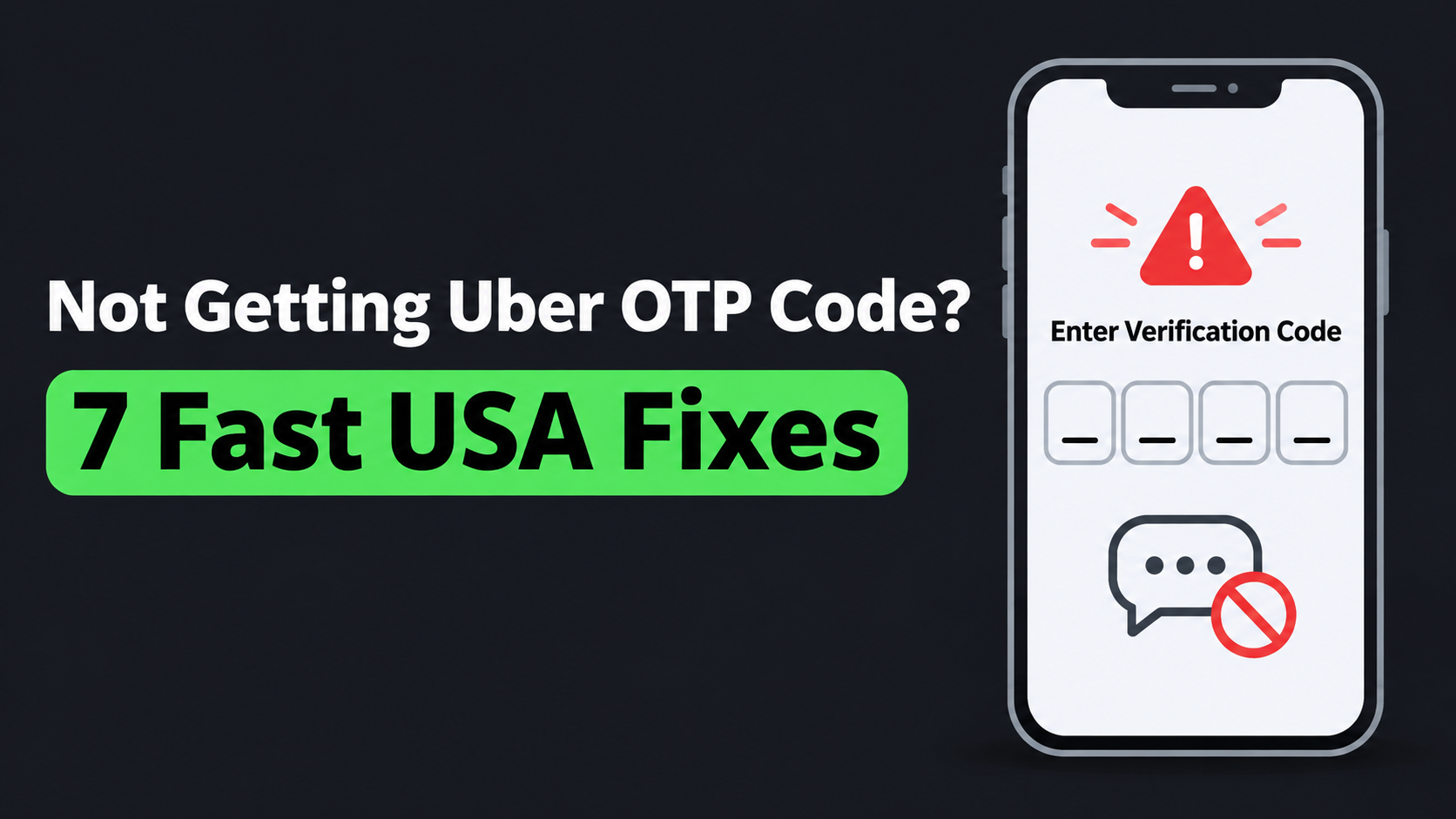
- Getting stuck on the 4-digit or 6-digit verification screen when trying to log into your Uber account—or when setting up a new phone in the United States—is a major headache. Even when you have full 5G bars, the SMS text message simply never arrives.
During real-world testing across major US wireless carriers (AT&T, T-Mobile, and Verizon) as well as prepaid MVNOs like Mint Mobile and Visible, we found that missing Uber OTP codes are rarely caused by Uber’s servers being down. Instead, they happen because US carriers silently block automated 5-digit short-code texts, VoIP numbers get rejected, or spam filters trap the message.
Use the table below to match your situation to the fastest solution.
Quick Diagnosis: Why Isn’t Uber Sending Your SMS Code?
| What Is Happening on Your Phone | Most Likely US Cause | Best Fix to Try First |
|---|---|---|
| Using a Google Voice, TextNow, or Skype number | Uber blocks virtual/VoIP phone numbers for security | Switch to a real SIM/eSIM carrier number (Fix #1) |
| You recently switched carriers (e.g., to Mint or Visible) | Ported number short-code routing delay | Request the code via Voice Call or Email (Fix #2) |
| You have full bars, but no short-code texts arrive | Carrier-level “Short Code Block” is active | Text “HELP” to Uber’s short code or call carrier (Fix #3) |
| You tapped “Resend Code” 4+ times in a row | Temporary 24-hour anti-spam rate limit | Wait 60 minutes and use Email/Passkey login (Fix #6) |
7 Tested Solutions for Missing Uber Verification Codes
1. Make Sure You Are Not Using a VoIP or Virtual Number
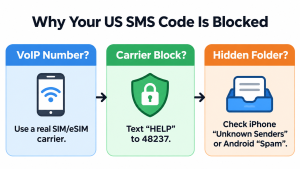
In the United States, many people use Google Voice, TextNow, Burner, or Sideline as a secondary phone number. However, Uber’s security system automatically blocks SMS verification codes from being sent to most VoIP (Voice over IP) numbers to prevent fake accounts.
-
- The Fix: Enter a standard US mobile number tied to a physical SIM card or eSIM from a cellular carrier (AT&T, Verizon, T-Mobile, Cricket, Metro, etc.).
2. Tap “I Didn’t Receive a Code” to Use Voice Call or Email
If the automated SMS text is stuck in carrier traffic, you do not have to keep waiting for a text message.
-
- On the verification screen, wait for the countdown timer (usually 30 to 60 seconds) to finish.
- Tap I didn’t receive a code (or More options).
- Select Resend code via voice call to receive an automated phone call that reads your 4-digit PIN out loud.
- If you already have an email linked to your Uber account, select Verify via email instead—email codes usually arrive within 5 seconds.
3. Unblock Short-Code SMS Messages With Your US Carrier
Uber sends verification codes using automated 5-digit or 6-digit short codes (such as
48237 or 32665). Many US wireless carriers and prepaid plans turn on “Short-Code Blocking” by default to stop spam, which accidentally blocks Uber, banks, and two-factor authentication texts.-
- Quick Test: Open your phone’s Messages app and send the word START or HELP to 48237 (one of Uber’s primary US short codes).
- Carrier Fix: If your message fails to send, call your carrier’s support line (dial
611on most US phones) and ask the agent: “Please remove any third-party short-code SMS blocks on my line.”
4. Check Your iPhone or Android Hidden Spam Folders
Modern iOS and Android updates aggressively filter automated 2FA messages into hidden folders without playing a notification sound.
-
- On iPhone (iOS): Open the Messages app, tap Filters in the top-left corner, and check Unknown Senders or Junk.
- On Android (Google Messages): Tap your Profile Icon in the top-right corner and open Spam & blocked to see if Uber’s text was automatically hidden.
5. Check If Your New US Phone Number Belonged to Someone Else
US wireless carriers frequently recycle disconnected phone numbers after 60 to 90 days. If you recently got a new number and Uber says “This phone number is already in use” or fails to send a code:
-
- Tap Trouble signing in? or Find my account on the login screen.
- Log in using your email address and password instead of your phone number.
- Once inside, go to Account > Manage Uber Account > Phone Number and update your profile to link your new number properly.
6. Stop Tapping “Resend Code” (Avoid the Rate-Limit Lock)
When an OTP code is delayed, tapping Resend Code five or six times in a minute triggers Uber’s automated anti-spam lockout. Once locked, Uber stops sending codes to your number for up to 24 hours.
-
- If you already tapped Resend multiple times, close the app completely and wait at least 1 to 2 hours before trying again.
7. Toggle Airplane Mode to Reset Your Cellular Tower Connection
Sometimes your phone shows 5G signal bars, but its SMS data channel is stuck on a congested cell tower—especially inside airports, stadiums, or concrete buildings.
-
- Swipe down your settings menu and turn Airplane Mode ON for 15 seconds.
- Turn Airplane Mode OFF and wait for your carrier name to reappear.
- Request one fresh verification code.
Frequently Asked Questions
What is Uber’s SMS short code number in the USA?
In the United States, Uber typically sends verification texts from 48237 or 32665. Saving these numbers in your phone’s contacts can prevent your device from filtering future login codes as spam.
Can I log into Uber without my phone number?
Yes. If you previously added an email address and password—or set up a Passkey / Google / Apple Sign-In—tap the alternative login icons below the phone number box on the welcome screen to bypass SMS verification.
Why did I get an Uber verification code I didn’t request?
If you receive an unexpected Uber OTP text, someone likely mistyped their own phone number by one digit while trying to log in, or someone is attempting to access your account. Do not share that code with anyone, and consider updating your Uber password inside Account > Security.