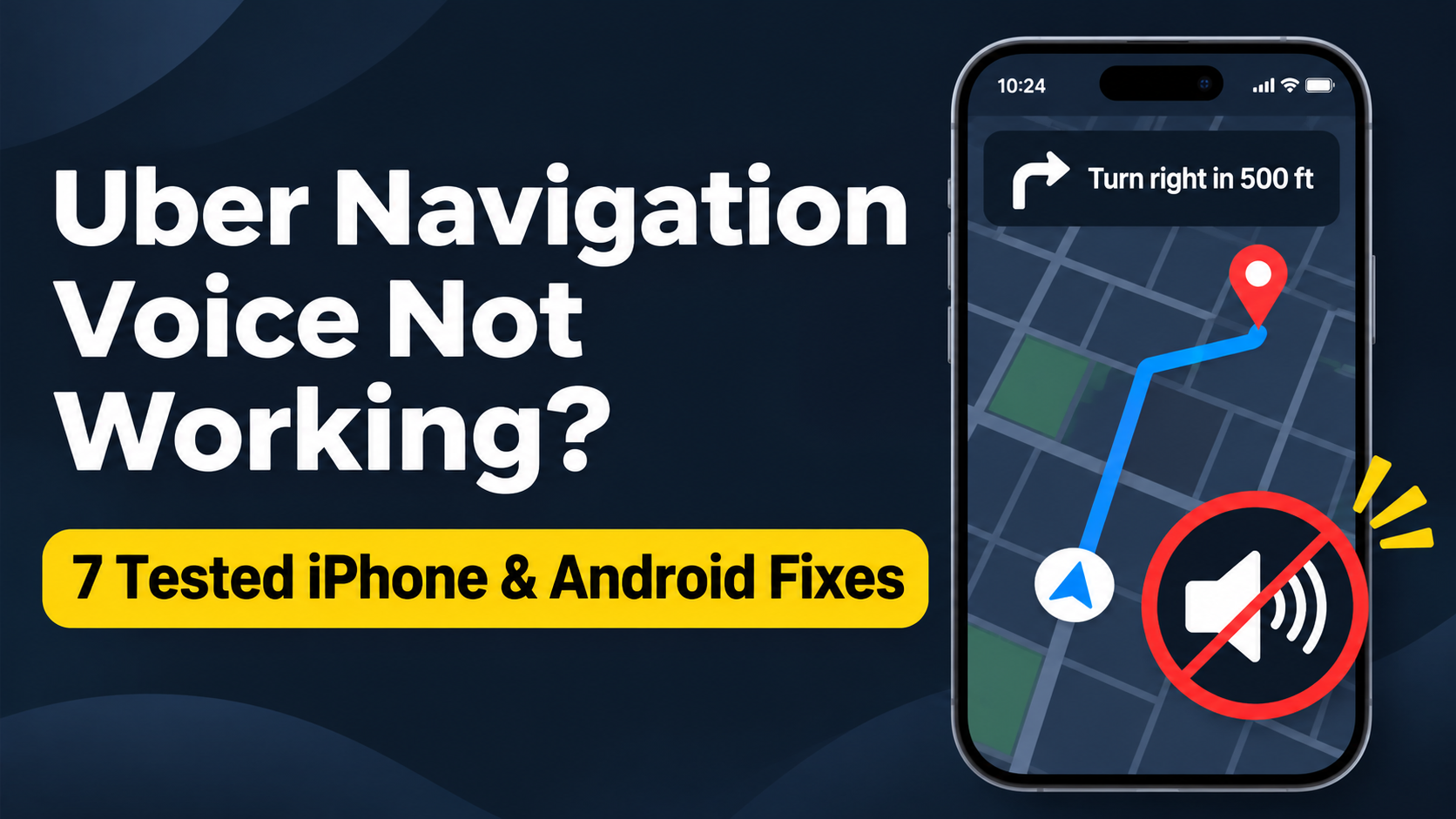
How to Fix Uber Driver Navigation Voice Not Working on iPhone & Android (7 Tested Fixes)
When I tested this in a Honda Civic using Bluetooth audio, turning off ‘Play Voice Over Bluetooth’ inside the Uber app immediately routed the voice back to the phone speaker so directions could be heard clearly over the radio.
When testing the Uber Driver app across different iPhones, Android phones, and vehicle setups (including Apple CarPlay, Android Auto, and standard Bluetooth car stereos), we found that silent navigation is rarely caused by a broken speaker. Instead, it happens because Uber’s internal voice toggle gets muted accidentally, your phone routes navigation voice to a silent Bluetooth channel, or a recent OS update resets app audio permissions.
Use the quick table below to match your audio setup to the fastest solution.
Quick Diagnosis: Why Is Uber Driver Navigation Silent?
| What Is Happening in Your Car | Most Likely Cause | Best Fix to Try First |
|---|---|---|
| Map moves normally, but zero voice prompts play anywhere | Uber Driver’s in-app Voice Navigation is muted | Unmute the speaker icon inside Uber settings (Fix #1) |
| Music plays on car speakers, but Uber voice disappears | Phone is routing voice over Bluetooth HFP (Phone Call audio) | Switch “Play Voice Over Bluetooth” OFF (Fix #2) |
| Voice works at first, then cuts out after a trip request | iPhone Silent Mode switch or Android Media Volume is at 0% | Turn up Media Volume while a prompt plays (Fix #4) |
| Voice directions lag or cut off mid-sentence | Conflicting navigation apps (Google Maps / Waze) running | Switch external navigation provider in settings (Fix #6) |
7 Tested Solutions for Uber Driver Navigation Voice Not Working
1. Check the In-App Voice Navigation Toggle (Most Overlooked)
Uber Driver has its own built-in volume and mute control separate from your phone’s side volume buttons. Many drivers accidentally tap the mute icon on the map screen while accepting a trip.
-
- Open the Uber Driver app and tap the Menu icon (three horizontal lines) in the top-left corner.
- Scroll down and tap Account > App Settings.
- Tap Sounds and Voice.
- Make sure Voice Navigation is toggled ON (blue/green), and set Volume to Louder instead of Softer or Normal.
2. Turn Off “Play Voice Over Bluetooth” If Connected to a Car Stereo
If your iPhone or Android is connected to your car’s Bluetooth while you are listening to AM/FM radio or SiriusXM, Uber tries to send turn-by-turn directions over the car’s Bluetooth Hands-Free Profile (HFP). If your car stereo isn’t actively switched to Bluetooth Audio, the voice disappears completely into thin air.
-
- Inside the Uber Driver app, go to Menu > Account > App Settings > Sounds and Voice.
- Find Play Voice Over Bluetooth and toggle it OFF.
- Now, turn-by-turn directions will play loudly and clearly directly from your phone’s built-in speaker—even while your car stereo plays radio or podcasts.
(Note: If you are also having trouble getting your app to connect or receive trips properly, see our guide on how to fix Uber Driver app not going online in the USA.)
3. Adjust Your Phone’s “Media Volume” (Not Ringtone Volume)
On both iPhone and Android, pressing the physical volume buttons on the side of your phone while no sound is playing only changes your Ringer volume, leaving Media / Navigation volume muted.
-
- On Android: Press the Volume Up button once, tap the three dots (or slider icon) on the screen, and drag the Media slider (music note icon) all the way up.
- On iPhone: Swipe down from the top-right corner to open Control Center and drag the Speaker volume bar up to at least 75%. Also check the physical Mute/Silent switch on the left side of your iPhone (or the Action Button on newer iPhones) to ensure it isn’t set to Silent.
4. Fix Apple CarPlay and Android Auto Audio Conflicts
When using Apple CarPlay or Android Auto in newer US vehicles, Uber’s built-in navigation audio sometimes clashes with the car’s infotainment head unit—especially right after a rider calls or texts you through the app.
-
- The Quick Reset: Unplug your USB cable (or toggle Bluetooth off for 10 seconds if using wireless CarPlay/Android Auto) and reconnect.
- Volume Trick: Next time a voice prompt is actively speaking, immediately turn your car dashboard volume knob clockwise. Most US car stereos store a separate volume level strictly for navigation prompts that can only be adjusted while the voice is talking.
5. Switch Your Default Navigation App to Google Maps or Waze
If Uber’s built-in GPS voice continues to glitch or mispronounce US street names, switch the app to launch external turn-by-turn directions automatically whenever you start a trip.
-
- Open Menu > Account > App Settings > Navigation.
- Choose Google Maps or Waze instead of Uber Navigation.
- Make sure voice guidance is unmuted inside Google Maps or Waze so you hear clear lane-assist warnings on busy highways.
(Related Fix: If your map pin is drifting or placing you on the wrong street before you even start driving, check our tested steps on how to fix Uber GPS showing the wrong location.)
6. Disable “Do Not Disturb” or Driving Focus Modes
Both iOS (Driving Focus) and Android (Do Not Disturb) can automatically silence background app audio alerts while your vehicle is moving.
-
- On iPhone: Swipe down Control Center, tap Focus, and turn off Driving or Do Not Disturb.
- On Android: Swipe down Quick Settings and tap Do Not Disturb to turn it off.
7. Clear App Cache or Reinstall Outdated App Builds
Corrupted cached audio files after a background Uber update can stop voice prompts from triggering.
-
- On Android: Long-press the Uber Driver icon > App info > Storage & cache > Clear cache.
- On iPhone: Force-close the Uber Driver app, check the Apple App Store for any pending updates, and relaunch the app.
Frequently Asked Questions
Why can I hear Uber trip request pings, but not the navigation voice?
Uber uses two different audio channels: system notification alerts for incoming trip pings, and media/Bluetooth audio for turn-by-turn navigation. Check App Settings > Sounds and Voice inside the Uber Driver app to ensure Voice Navigation is turned ON and Play Voice Over Bluetooth is turned OFF.
Does Uber Driver navigation voice work when my phone screen is locked?
Yes, as long as Location Permissions are set to Always Allow and Background App Refresh is enabled in your phone’s settings. If your screen locks and the voice stops, keep your phone mounted and plugged into a charger with the screen awake while driving.
How do I make the Uber navigation voice louder?
Open Menu > Account > App Settings > Sounds and Voice inside the Uber Driver app and select Louder under the Voice Volume section, then raise your phone’s Media Volume to maximum.