How to Fix Uber GPS Showing Wrong Pickup Location in the USA (Tested Fixes)
Few things are more distressing than witnessing your Uber driver draw up on the opposite side of a multi-lane US highway or at the incorrect airport terminal while the 2-minute waiting timer starts counting.
When testing the Uber passenger app across congested metropolitan grids (like Chicago and Manhattan) and multi-level US airports (like LAX and JFK), I observed that the app rarely loses your GPS signal completely. Instead, it suffers from Wi-Fi triangulation inaccuracy, indoor concrete signal reflection, or disabled Precise Location permissions after an iOS or Android update.
Use the fast table below to match what is occurring on your screen, followed by the identical steps that corrected the pin drift during my testing.
Quick Diagnosis: Match Your GPS Issue to the Right Fix
What You See on Screen Most Likely US Cause Best Fix to Try First Blue dot is 1–2 blocks away in a downtown area Tall buildings rebounding GPS signals (“Urban Canyon” effect) Toggle Wi-Fi ON without connecting (Fix #2)
Pin lands on the incorrect street behind your building Rear-alley entrance or gated apartment complex Manually drag the pin + add a Pickup Note (Fix #4)
Pin defaults to Departures instead of Arrivals at an airport Multi-level terminal GPS confusion Select the specific terminal/door zone in-app (Fix #5)
Blue dot has a wide, faded blue circle around it “Precise Location” permission is switched off Enable Precise Location in phone settings (Fix #1)
6 Tested Fixes for Uber Wrong Pickup Location
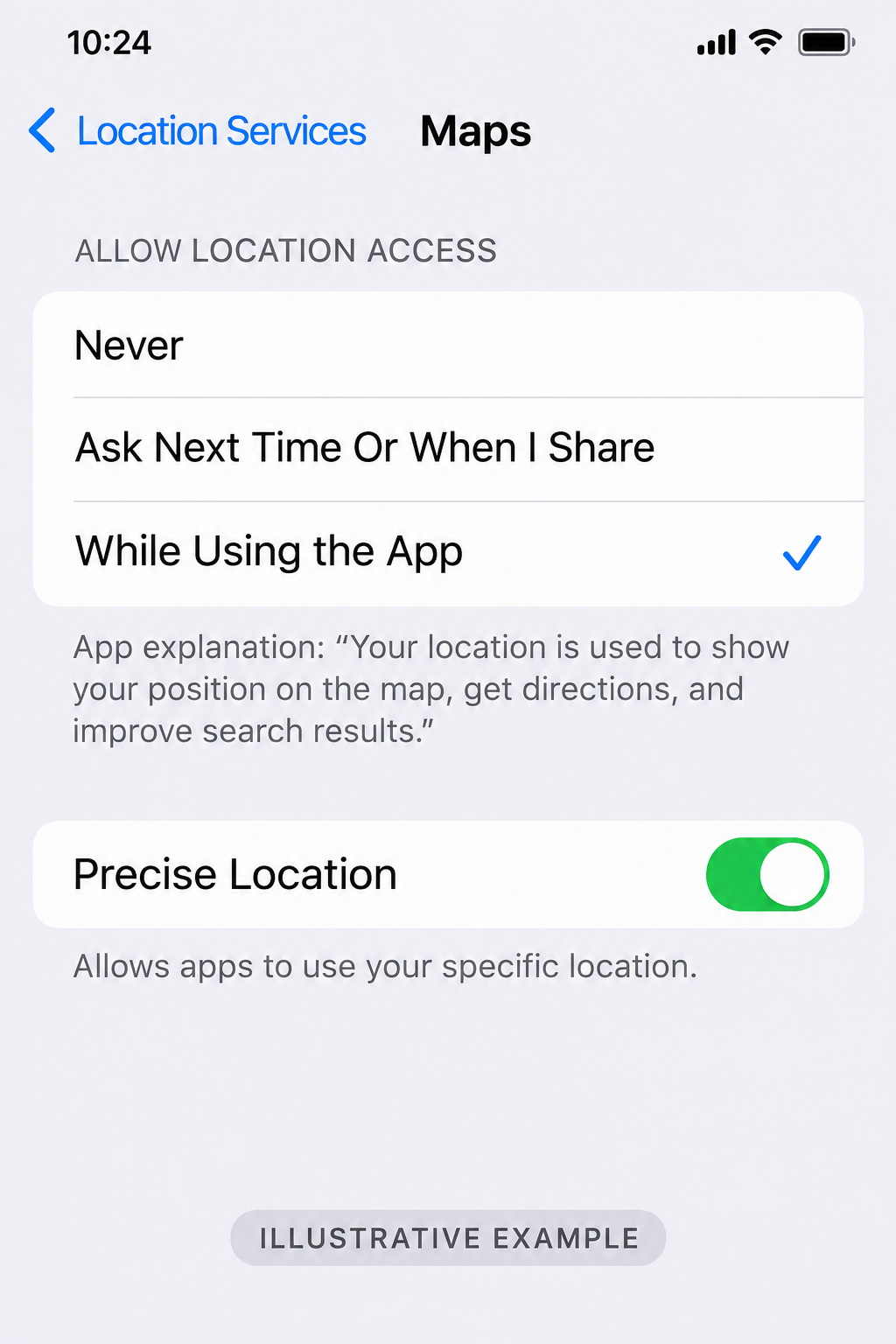
1. Turn On “Precise Location” (Most Common After Phone Updates)
Both iOS and Android let you restrict applications to your “Approximate Location,” which positions your blue dot within a 1-to-3-mile radius instead of your exact curb. I have seen significant OS updates reset this toggle automatically.
• On iPhone (iOS):
1. Open your iPhone Settings and navigate down to Uber. 2. Tap Location and make sure it is set to While Using the App. 3. Toggle Precise Location to ON (green). • On Android: 1. Long-press the Uber app icon on your home screen and select App info (the “i” icon). 2. Go to Permissions > Location. 3. Select Allow only while using the app and switch Use precise location to ON.
2. Turn Wi-Fi ON (Even If You Are Not Connected to a Network)
Many US commuters turn off their phone’s Wi-Fi when departing home to save battery. However, modern smartphones rely significantly on adjacent Wi-Fi router MAC addresses to triangulate your exact street corner when cellular towers are congested.
• Swipe down your Control Center (iPhone) or Quick Settings (Android) and turn Wi-Fi ON.
• You do not need to connect into any public hotspot. Simply having the Wi-Fi radio active allows your phone to monitor adjacent storefront routers and capture your Uber blue dot onto the correct sidewalk within 5 to 10 seconds.
3. Recalibrate Your Compass Using Google Maps or Apple Maps
If the blue dot is in the correct place, but the arrow points the wrong direction, your phone’s internal magnetometer needs recalibration.
1. Minimize Uber and launch Google Maps (or Apple Maps).
2. Tap the Blue Dot indicating your current location.
3. Select Calibrate (on Android, move your phone in a figure-8 motion three times until accuracy reads “High”).
4. Force-close the Uber app completely, reopen it, and verify if the icon attaches to your current street.
4. Override the Pin Manually and Use a Landmark Note
In large US apartment complexes, retail centers, or stadiums, Uber’s map database often directs drivers to the building’s mailing address—which might be a closed rear gate or service entrance.
1. On the “Where to?” screen, tap your Pickup Location box.
2. Instead of relying on your current GPS address, select Set location on map.
3. Drag the black icon directly onto the precise driveway, crosswalk, or storefront entrance where you are standing.
4. Once matched with a chauffeur, select Any retrieval notes? and type a distinct visual cue (for example: “Standing by the red Target cart return on Main St”).
5. Use Official Airport Rideshare Zones Instead of Dropping a Pin
Major US airports (such as ATL, ORD, DFW, and LAX) rigorously geofence Uber pickups. Dropping a manual pin at the curb will often fail or shift your retrieval location onto a nearby highway overpass.
• Type the precise airport name into the collection field rather than using “Current Location.”
• Follow the in-app prompts to select your Terminal, Level (Arrivals/Departures), and Door or Pillar Number (e.g., Terminal 2, Door 2B, Outer Curb).
6. Clear Location Cache by Toggling Airplane Mode
When stepping out of a concrete subway station (like NYC MTA or Chicago CTA) or a subterranean parking garage, your phone may remain latched onto a distant cell tower.
1. Turn Airplane Mode ON for 15 seconds.
2. Turn Airplane Mode OFF and wait for your 5G/LTE bars to reconnect.
3. Reopen the Uber app so it obtains a fresh satellite lock from beginning.
Frequently Asked Questions
Why does Uber display my location at my former residence or office?
This occurs when your phone caches an obsolete IP address or Wi-Fi gateway location. Turning Wi-Fi off and back on, toggling Airplane Mode for 15 seconds, and force-closing the Uber app clears the cached coordinates.
Will Uber charge me a cancellation fee if the GPS sent the driver to the incorrect spot?
If the GPS device was inserted in the incorrect location automatically and the driver cancels after waiting, Uber may charge a standard cancellation fee. You can request a refund in the app by going to Account > Trips > Select the Canceled Trip > Help > Review my cancellation fee and selecting “Driver was at the incorrect pickup location.”
Does using a VPN screw up my Uber delivery location?
Yes. While GPS uses satellites, Uber cross-checks your IP address for fraud prevention. If your VPN routes through another US state, the app may fail to display local map tiles effectively. Always suspend your VPN before requesting a transport.